
How to customize Breadcrumbs for Pearl Theme Magento 2
Breadcrumbs help customers understand where they are within your store. Here’s how you can customize them in the Pearl Theme:
Step 1 — Open Frontend Options
From the Admin sidebar, go to WeltPixel → Pearl Theme Options → Frontend Options.

Step 2 — Select Store View
Choose the Store View you want to apply changes to.

Step 3 — Configure Breadcrumbs
Scroll down to the Breadcrumbs section and configure your options.

Click Save Config when finished.
Step 4 — Breadcrumbs Placement
You can enable and customize Breadcrumbs for different areas:
a. Category Page


b. Product Page


c. CMS Pages
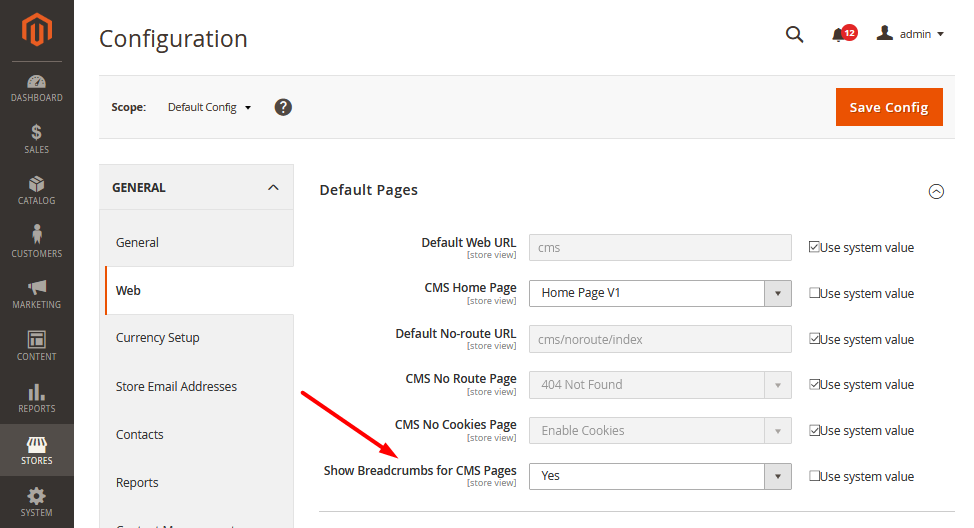
Navigate to Admin → Stores → Settings → Configuration → Web → Show Breadcrumbs for CMS Pages → Yes / No
Step 5 — Apply Changes
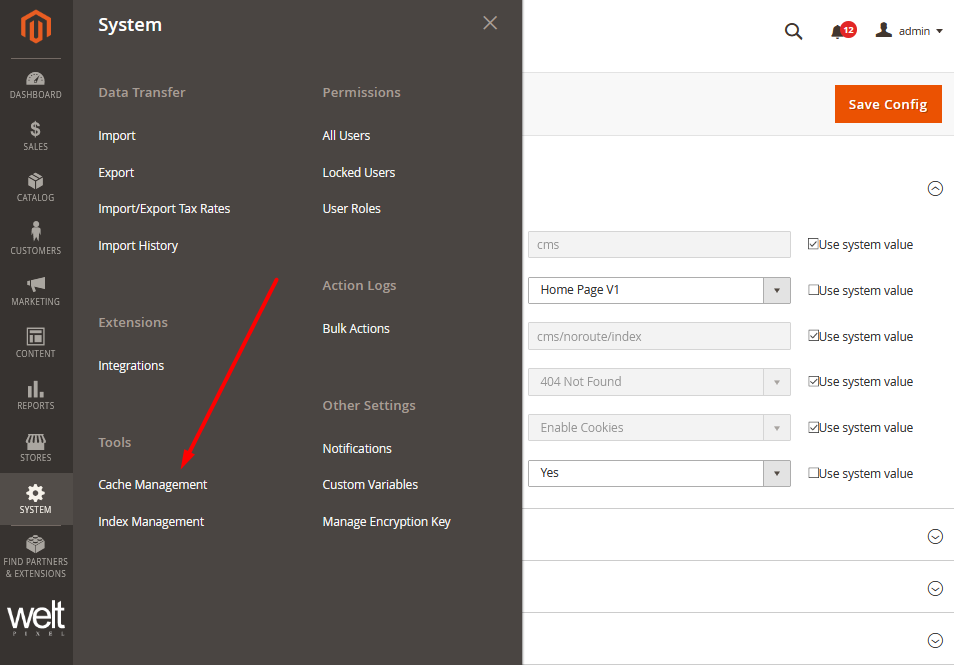
Go to System → Tools → Cache Management and:
- Tap Regenerate Pearl Theme LESS/CSS files (select your Store View).
- Select all Cache Types and click Refresh.
- Tap Flush Magento Cache.
Step 6 — Verify Changes
Refresh your storefront and confirm the Breadcrumbs display as expected.
🎉 Great job!
Updated on: 16/09/2025
Thank you!