> ## Knowledge Base Index
> Fetch the complete knowledge base index at: https://help.weltpixel.com/sitemap.xml
> Use this file to discover available pages before exploring further.
> Pure-Markdown content can be obtained by appending a '.md' suffix to the content URLs listed in the sitemap (without the trailing slash).
# How to customize css / xml / phtml / js files in Magento 2 - examples [ Tutorial ]
In this article, we’ll show practical ways to customize `.css`, `.xml`, `.phtml`, and `.js` files in Magento 2.
These patterns work for **any** Magento 2 theme/extension and are demonstrated with the Pearl Theme for clarity.
---
### Summary
1. Using a child theme for Magento 2 customizations
2. Magento 2 CSS customization
3. Magento 2 XML customization
4. Magento 2 PHTML customization
5. Magento 2 JS customization
6. Add custom code in Footer and Head via Admin options
7. Pearl Theme CSS/JS options for Category Pages, Static Pages, and Static Blocks
8. Additional Magento customization resources
---
### 1) Using a child theme for Magento 2 customizations
It’s best practice to place **all customizations in a child theme** so core/theme updates don’t overwrite your work.
Enable the included Pearl child theme at:
**Admin → Content → Design → Configuration → (Edit your store view) → Theme → “Custom Pearl Theme for Magento 2.”**

Add your custom CSS here:
`app/design/frontend/Pearl/weltpixel_custom/web/css/source/wp_custom.less`
---
### 2) Magento 2 CSS customization
Small visual tweaks are easiest in the child theme’s `wp_custom.less`.
**Example: Hide the search box in the header.**
Add to `wp_custom.less`:
```less
.block-search {
display: none;
}
```
After changes, **regenerate Pearl Theme LESS/CSS** and **flush Magento cache**.
---
### 3) Magento 2 XML customization
For layout updates (moving elements, removing blocks), recreate the same module/layout path in the child theme.
In Pearl, headers come from `app/code/WeltPixel/CustomHeader`.
Create this in the child theme and add only your changes:
`app/design/frontend/Pearl/weltpixel_custom/WeltPixel_CustomHeader/layout/default.xml`
**Example: Remove the currency switcher from the header.**
```xml
```
> **Note:** If you’ve selected **Header V2** in Admin, extend `weltpixel_custom_header_v2.xml` instead of `default.xml`.

---
### 4) Magento 2 PHTML customization
When changing template output, **copy the original `.phtml` to the same path in the child theme** and edit it there.
**Example: Swap “Add to Wishlist” and “Add to Compare” on the Product Page.**
Copy **FROM**:
`app/code/WeltPixel/ProductPage/view/frontend/templates/product/view/addto.phtml`
Copy **TO**:
`app/design/frontend/Pearl/weltpixel_custom/WeltPixel_ProductPage/templates/product/view/addto.phtml`
Then adjust the order inside the copied template, e.g.:
```php
```

> After editing templates, **deploy static content / flush cache** as appropriate for your mode.
---
### 5) Magento 2 JS customization (via a small custom module)
Use a lightweight custom module to load your JS.
Download the sample module structure:
`https://www.weltpixel.com/resources/SampleCustomModule/Custom.zip`
(Unzip under `app/code/`)
Enable and register:
```bash
php bin/magento module:enable Custom_Js --clear-static-content
php bin/magento setup:upgrade
php bin/magento cache:clean
```
Add your JS here:
`app/code/Custom/Js/view/frontend/web/js/customjs.js`
**Example** (simple AMD module):
```javascript
define(['jquery'], function ($) {
'use strict';
return function () {
// Your custom JS goes here
console.log('Custom JS loaded');
};
});
```

---
### 6) Add custom code in Footer and Head via Admin options
**a) Footer → Miscellaneous HTML**
Path: **Content → Configuration → (Edit Store View) → Footer → Miscellaneous HTML**
You can inject HTML/CSS/JS that will render in the footer.
```html
```

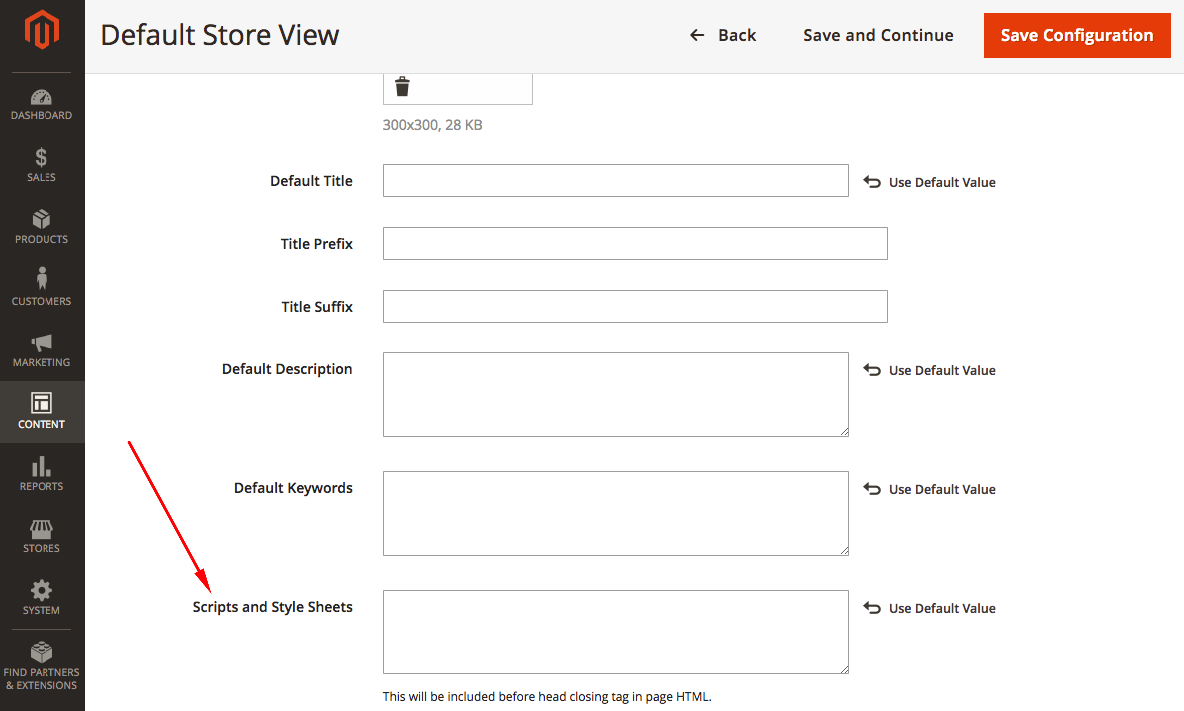
**b) HTML Head → Scripts and Style Sheets**
Path: **Content → Configuration → (Edit Store View) → HTML Head → Scripts and Style Sheets**
```html
```
---
### 7) Pearl Theme CSS/JS options for Category Pages, Static Pages, and Static Blocks
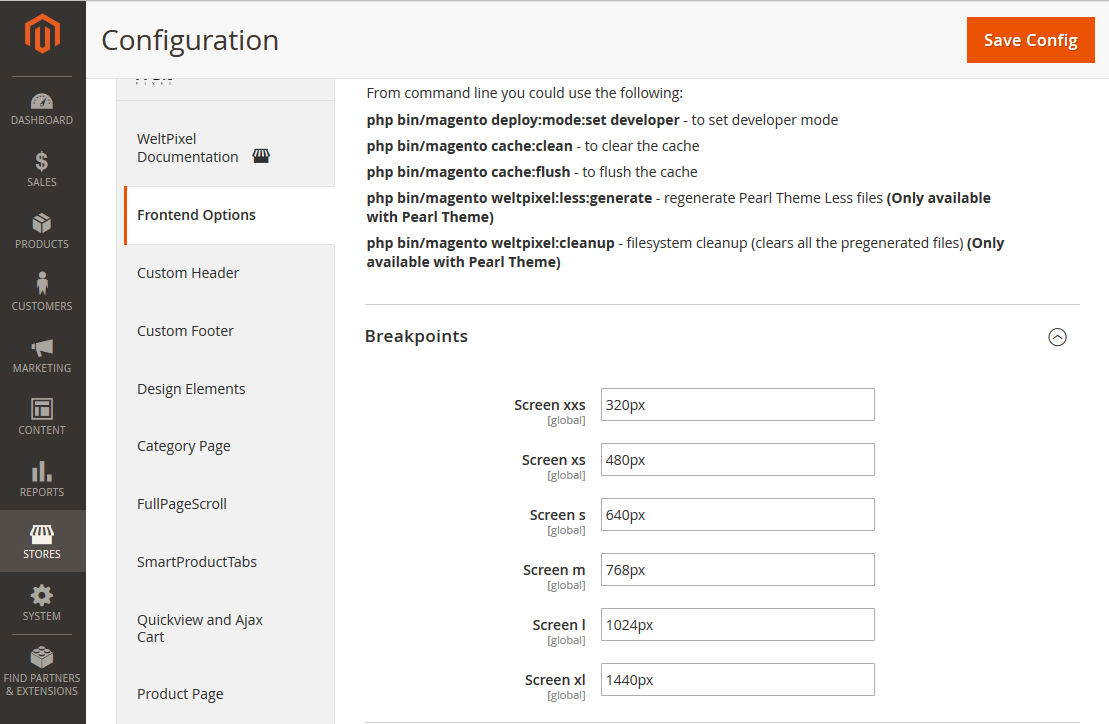
Pearl adds convenient fields for CSS/JS at multiple breakpoints.
Set breakpoints at **WeltPixel → Frontend Options → Breakpoints**.
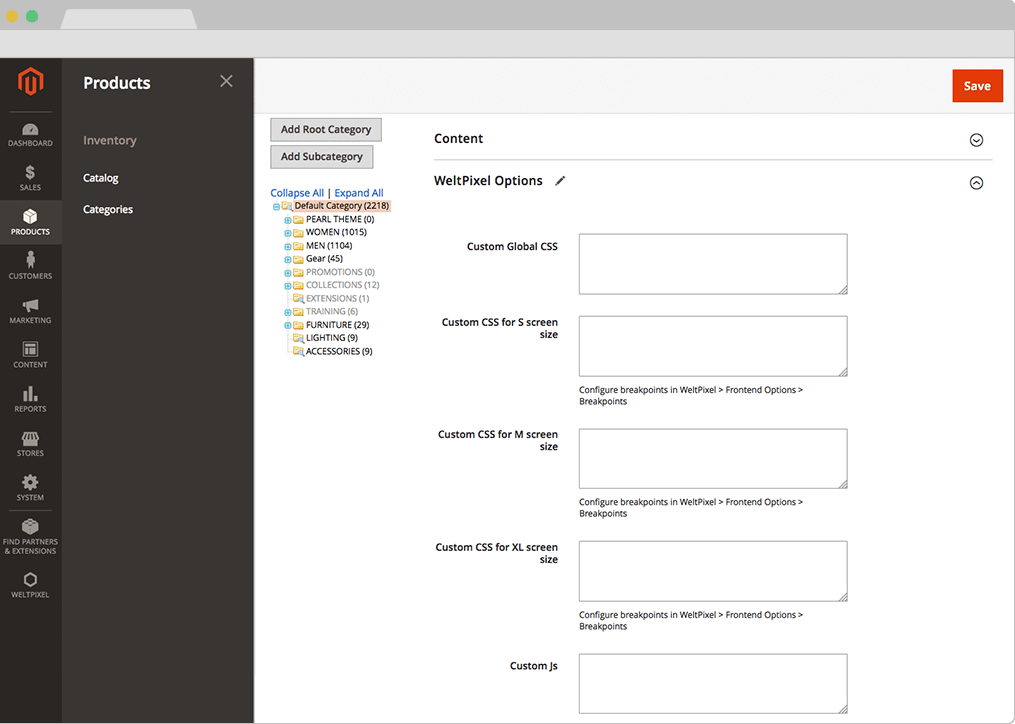
**a) Per-category CSS/JS**
Path: **Products → Categories → (Open category) → WeltPixel options**
Use **Custom Global CSS/JS** or breakpoint-specific fields.
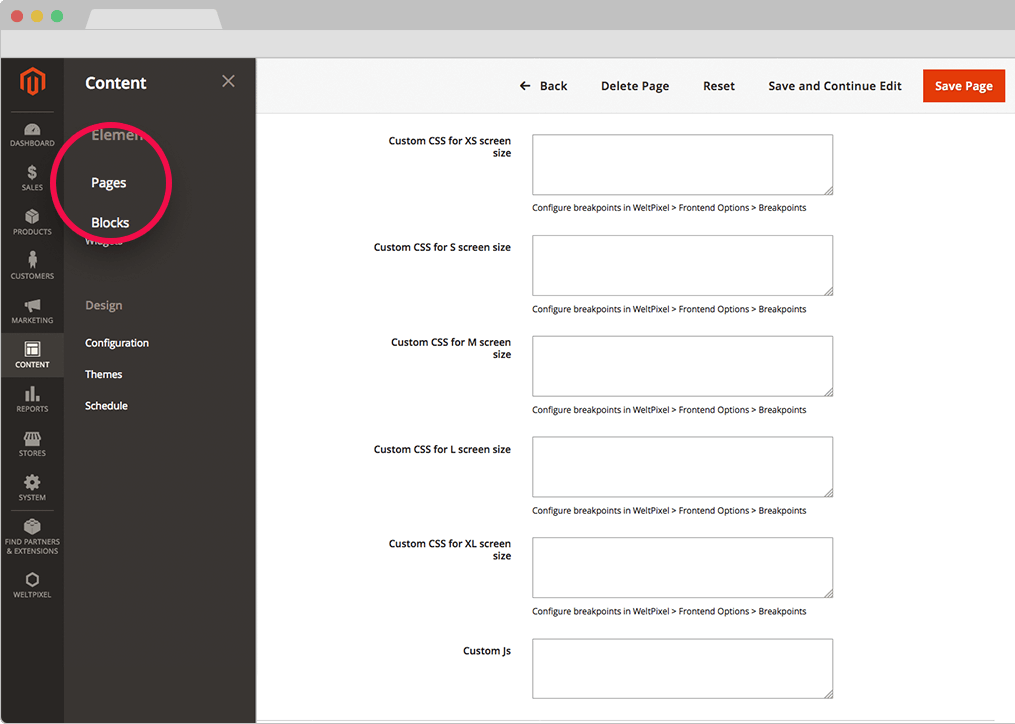
**b) Per-static page CSS/JS**
Path: **Content → Pages → (Edit page) → Design**
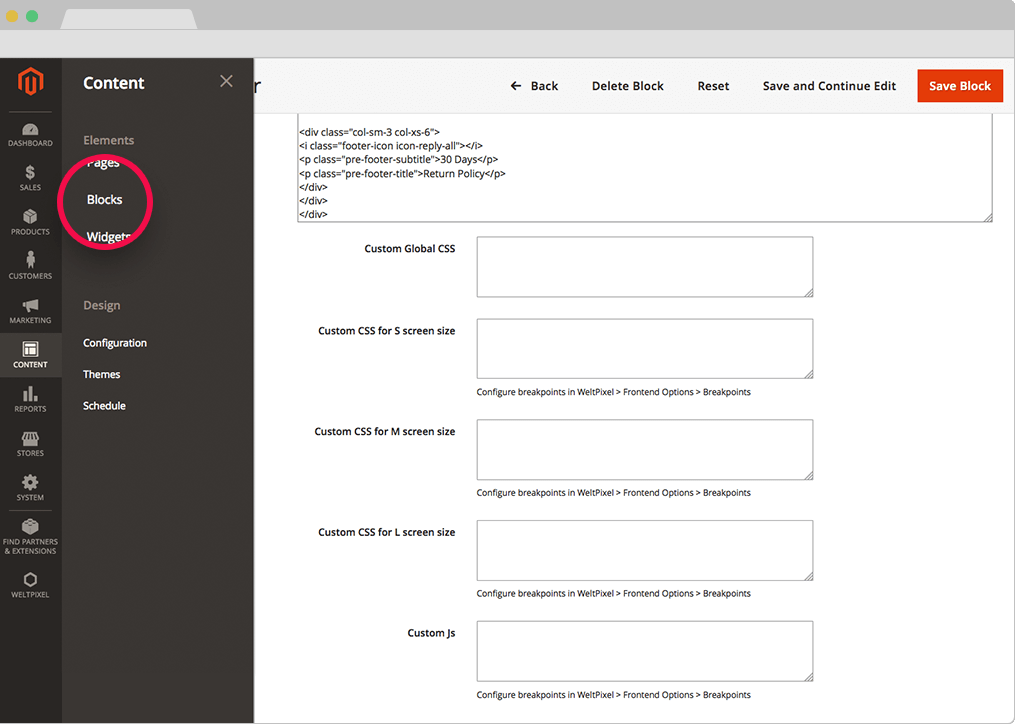
**c) Per-static block CSS/JS**
Path: **Content → Blocks → (Edit block)** — fields are under the editor.
> **Notes**
> - Breakpoint CSS cascades upward by default (applies to larger widths unless overridden).
> - For global changes affecting **all** categories/pages/blocks, target a shared wrapper class and place CSS in the child theme as shown in section 2.
---
### 8) Additional Magento customization resources
- Magento Developer Guide: http://devdocs.magento.com/
- [Insert CMS Block via Widget (e.g., under products on category page)](https://help.weltpixel.com/en/article/how-to-insert-a-cms-block-in-different-sections-of-your-store-using-a-magento-widget-vihr9k/)