
How to customize the width for your store sections in Magento 2 Pearl Theme
Adjusting the dimensions of your store layout can significantly improve customer experience by creating visual balance and harmony across all sections. Pearl Theme makes it simple to control widths for various elements via the Admin panel.
Step 1: Adjust Store Section Widths
Go to:
Admin → WeltPixel → Pearl Theme Options → Frontend Options

Key Notes
- Widths can be set in px or %.
- Page Main should be set to
100%. All child values expressed in%will reference this setting (not the full page width). - Don’t forget to Save Config after changes.

Examples for Each Section
- Page Main Padding:
0px,80px,0 25px

- Footer:
1400px,95%,1200px(use100%for full width)

- Row (class
row):800px,1020px,1300px

- Default Pages (Cart, Checkout, Login, etc.):
1400px,1200px,1000px

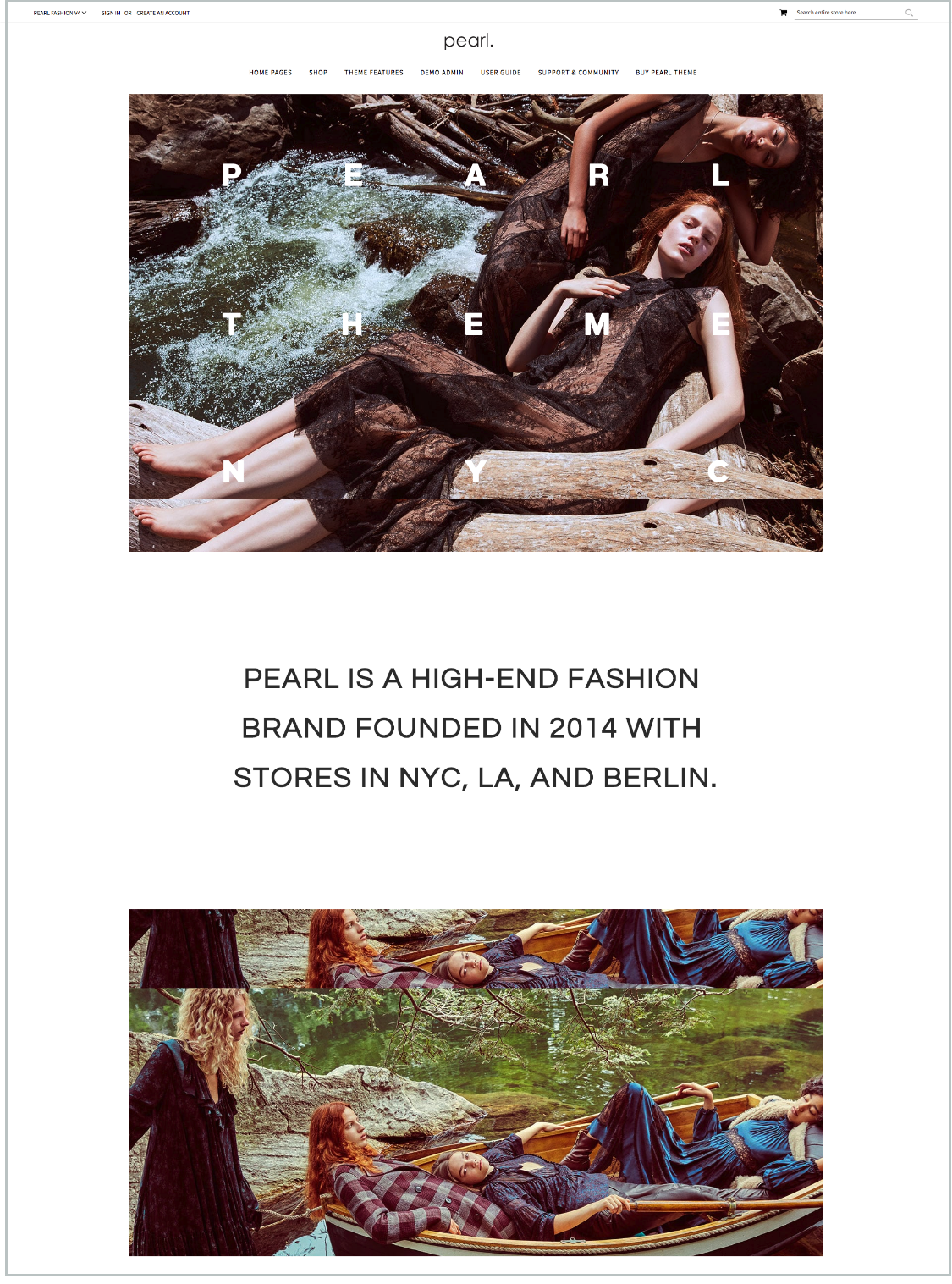
- CMS Pages:
1400px,100%,90%
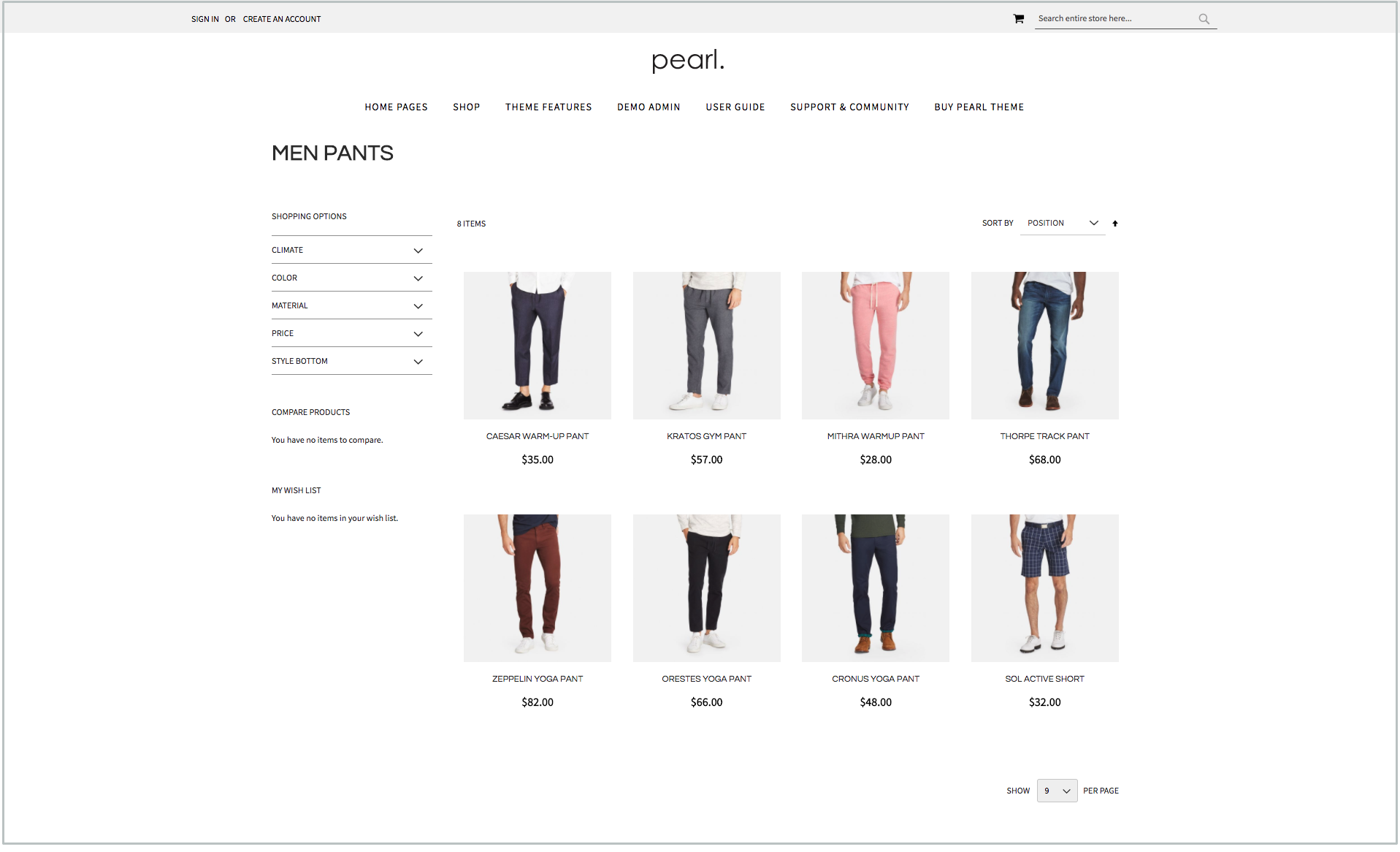
- Category Pages:
1200px,80%,100%
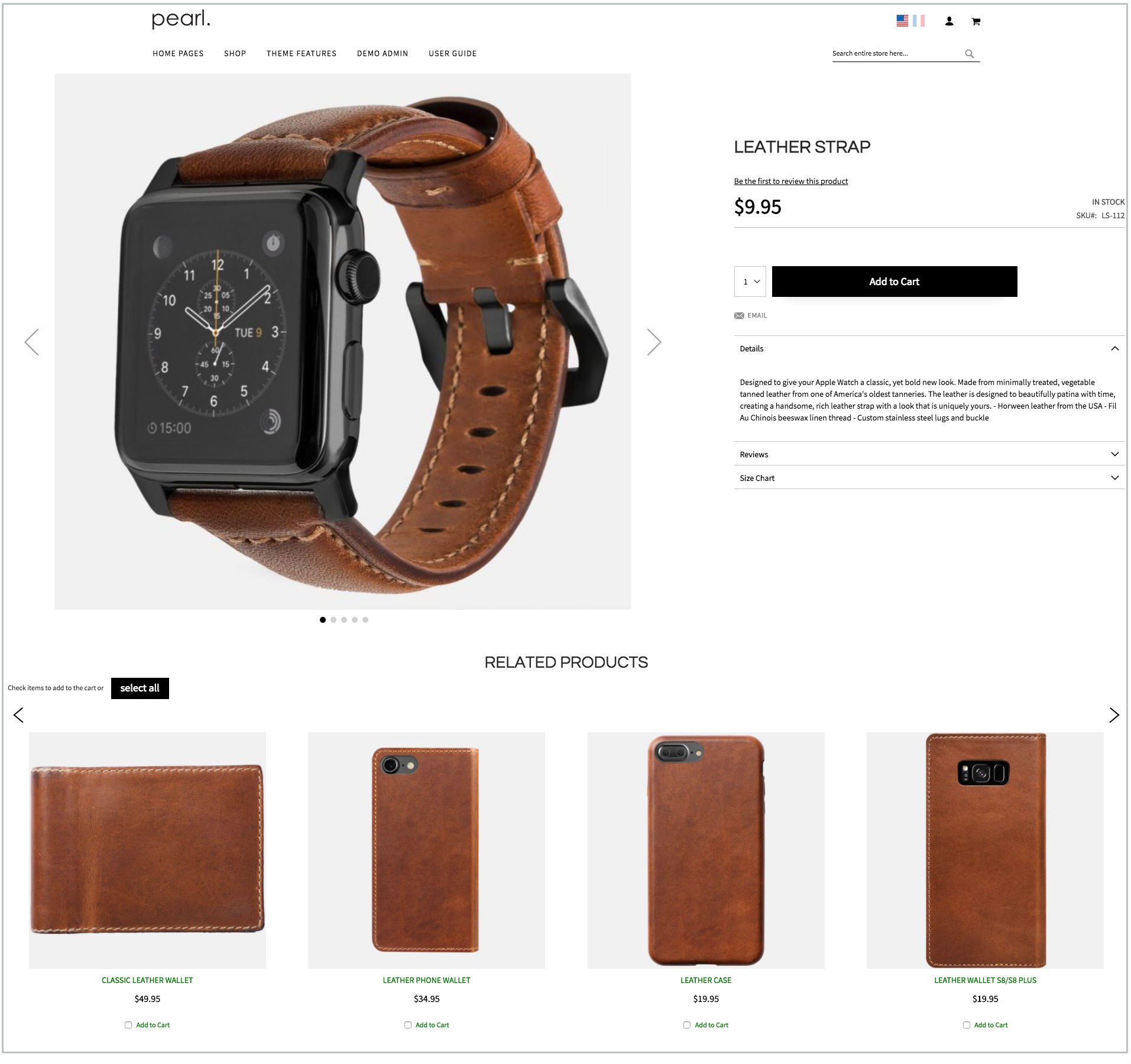
- Product Pages:
1200px,100%,1400px
Step 2: Adjust Header Width
Go to:
Admin → WeltPixel → Pearl Theme Options → Custom Header
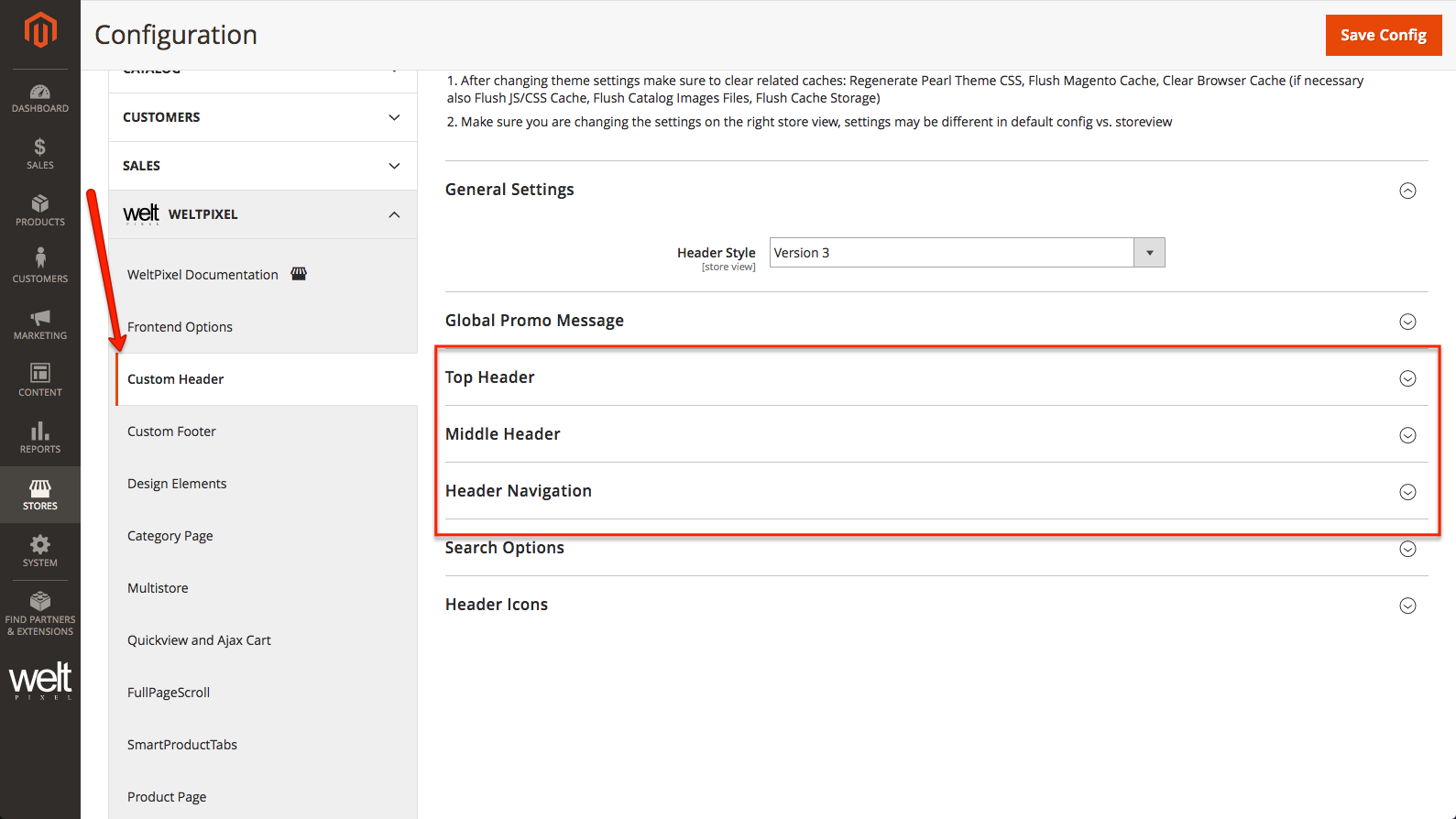
Examples: 1430px, 95%, 1200px

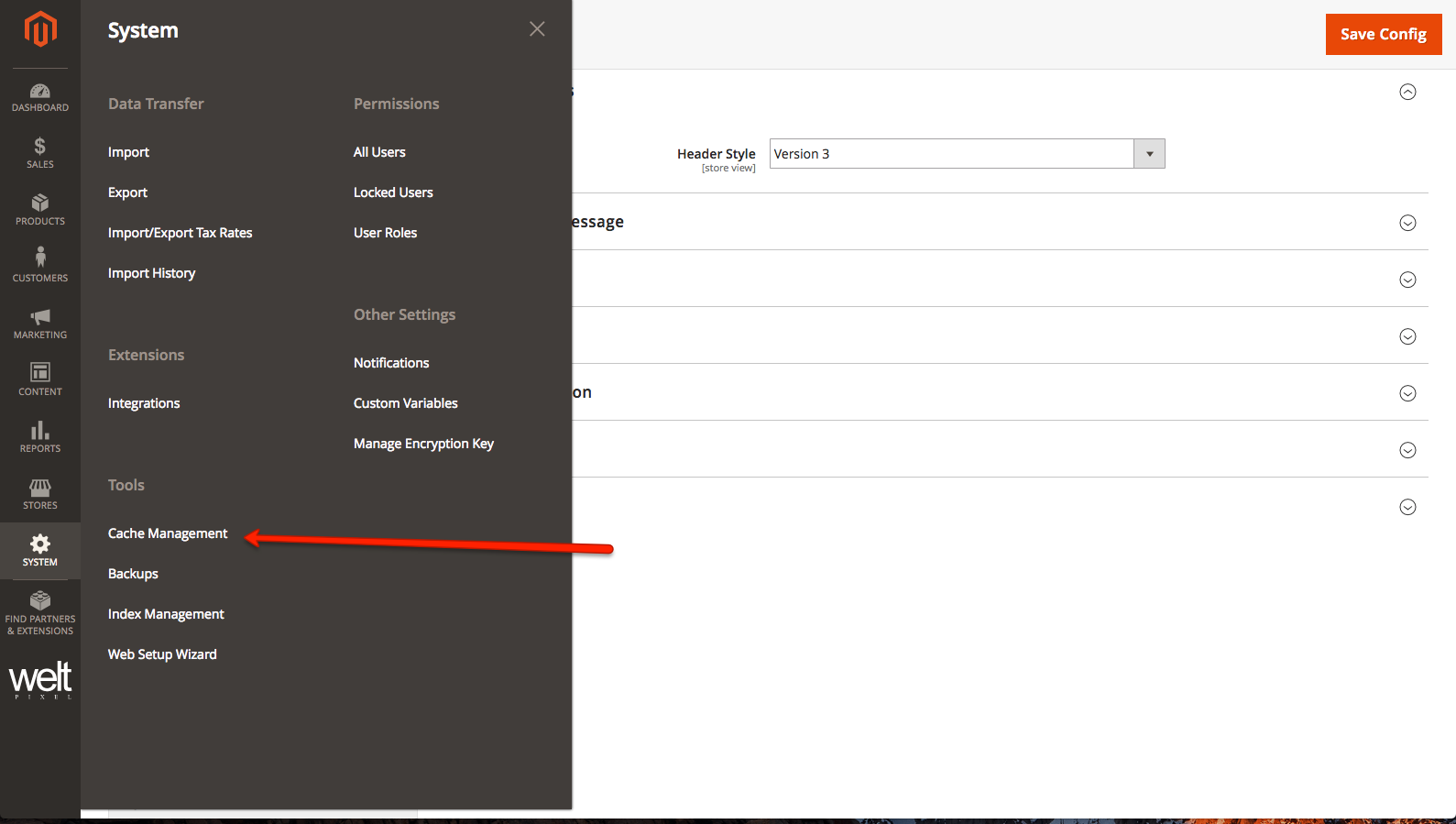
Step 3: Clear Cache
Go to:
System → Tools → Cache Management
Important Recommendations
- After changing settings, clear caches:
- Regenerate Pearl Theme CSS
- Flush Magento Cache
- Clear Browser Cache
- (If necessary: Flush JS/CSS Cache, Flush Catalog Images, Flush Cache Storage)
- Ensure you’re modifying the correct store view. Settings may differ between Default Config and specific Store Views.
- Frontend Options now available per store view:
- Use different locales (EN, FR, etc.) when running multiple store views with Pearl Theme.
- If using the same language across multiple store views, create a separate Pearl Child Theme for each.
🔗 For details, see: How to use Pearl Theme on multiple store-views
Updated on: 17/09/2025
Thank you!