
How to install extension if purchased from Magento Marketplace
Installing via Composer CLI Commands
Composer CLI is the only supported method to install Magento 2 modules, as Magento has deprecated the Web Setup Wizard.
Step 1 — Check Compatibility
Before installing, verify that the extension is compatible with your Magento version.
WeltPixel Marketplace extensions are compatible with Magento 2.3.X – 2.4.X.
Always install on a development/staging server first, then move to production after verifying functionality.
Step 2 — Configure Authentication Keys
Ensure your Magento Marketplace Authentication Keys are configured on your instance.
If keys are missing or misconfigured, Composer may return a
“no matching package found” error.
Refer to Magento Documentation for instructions on generating and adding these keys.
Step 3 — Install the Extension
Navigate to the root of your Magento project and run the following commands.
For example, to install the Layered Navigation extension:
composer require weltpixel/m2-weltpixel-layered-navigation
php bin/magento setup:upgrade
php bin/magento setup:di:compile
php bin/magento setup:static-content:deploy -f
Installing Manually via SSH
Manual installation is available if:
- You purchased directly from weltpixel.com, or
- You migrate your Marketplace purchase to your WeltPixel account.
If you’ve purchased from the Marketplace and would like to migrate, see this guide:
Manual (SSH) Installation if product is purchased from Magento Marketplace
License Key for Paid Extensions
Paid extensions purchased via the Marketplace require a WeltPixel License Key.
To generate your license key, see this guide:
Deprecated Method
Magento has removed the Web Setup Wizard, but for reference, the legacy installation method is documented below.
After purchase, you would be redirected to the Marketplace order confirmation page:
- Click Install on the confirmation page.

- Create and use Access Keys.

- Go to System → Web Setup Wizard in your Admin Panel.

- In Extension Manager, sign in with your keys.

- Click Refresh to sync Marketplace purchases, then review and install.

- Select the module and click Install.

- Proceed through readiness checks. Create a backup before continuing.

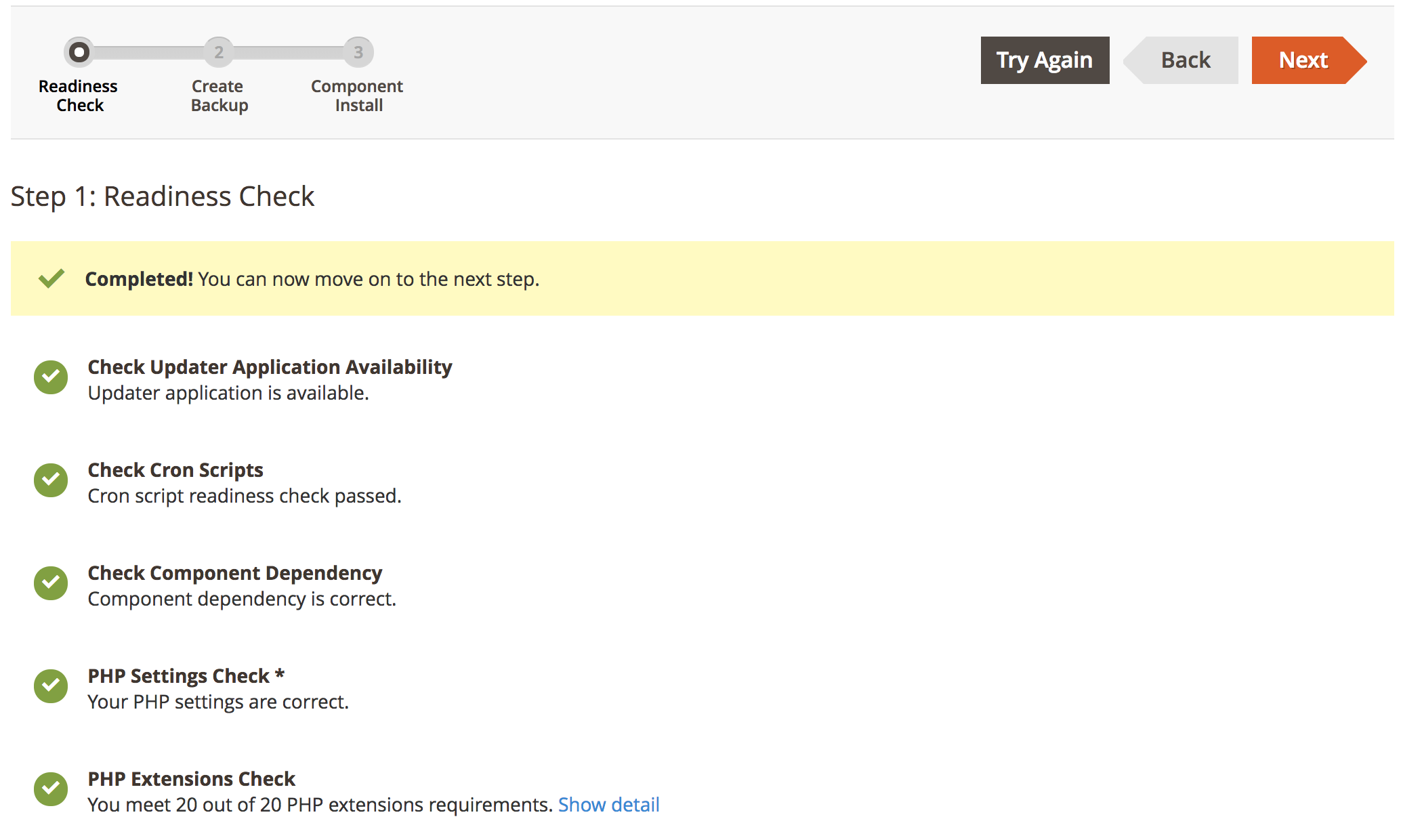
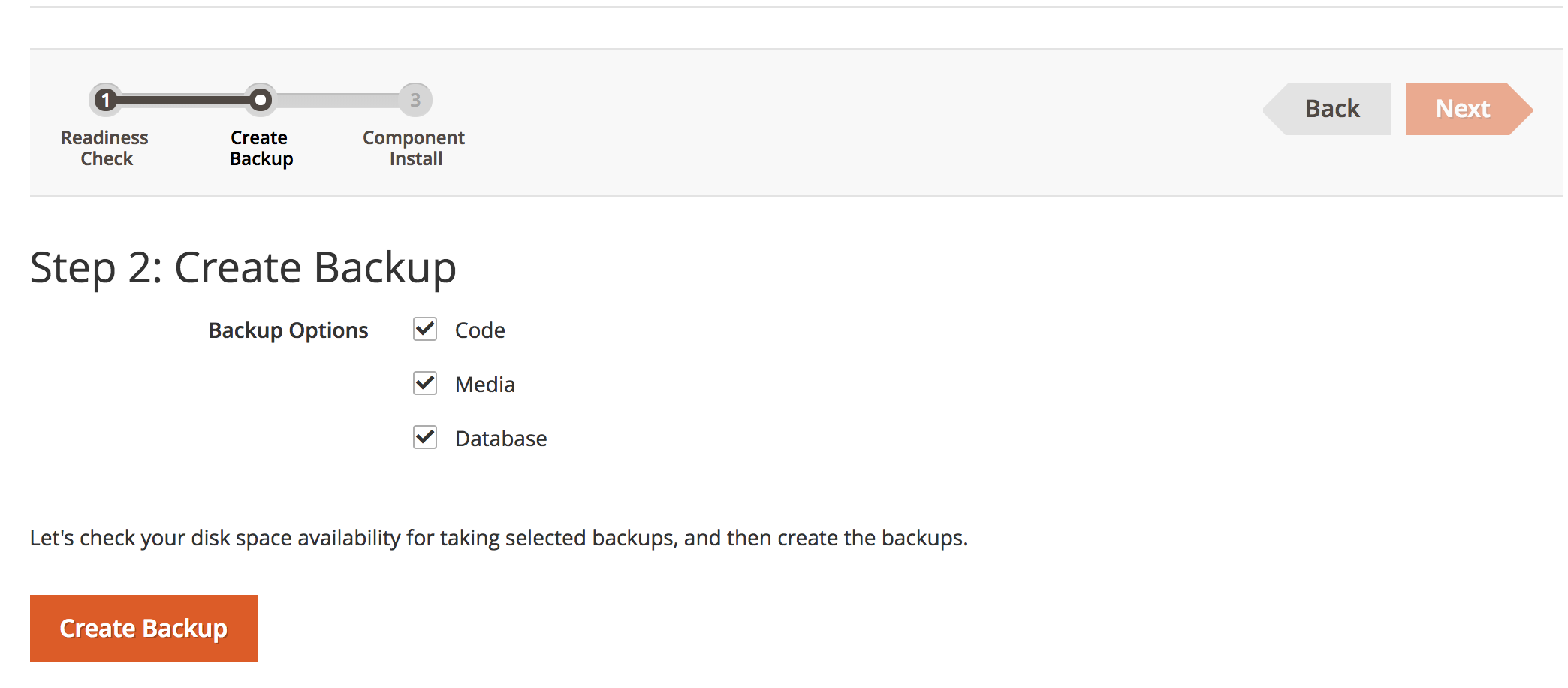
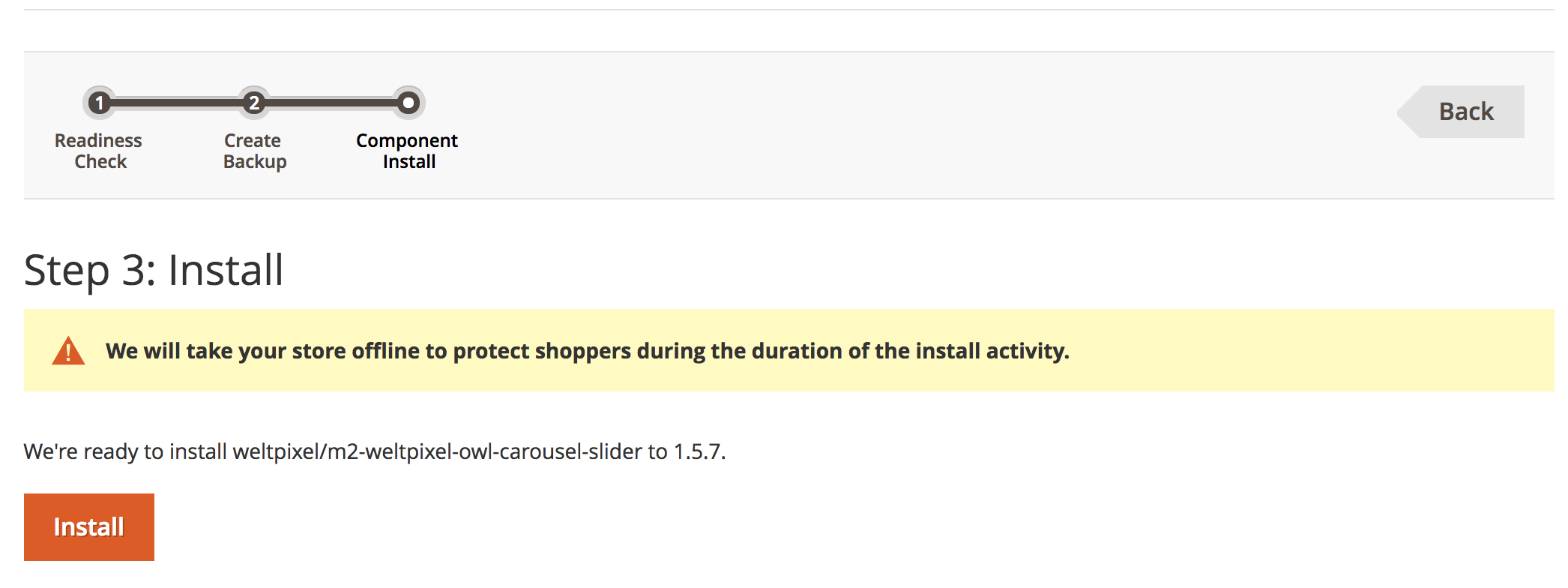
- Wait for the process to complete and the Success page to appear.
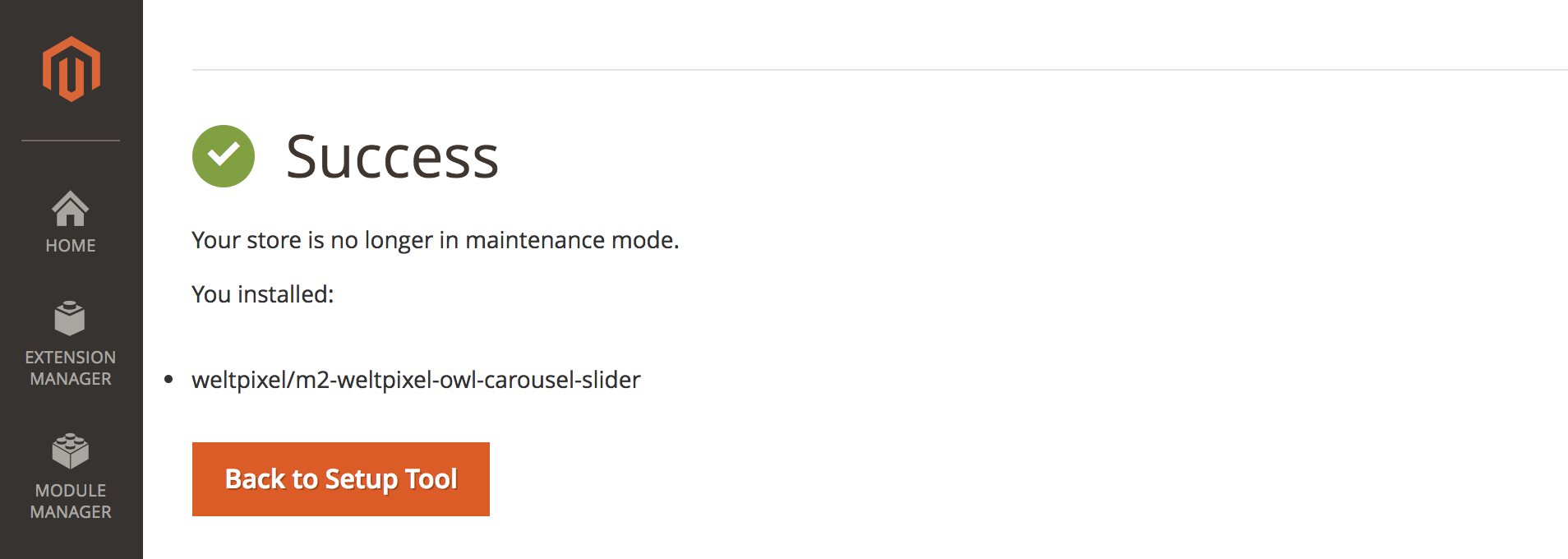
- The extension is now installed. Proceed with the configuration steps from the extension’s documentation.
Installation Troubleshooting
If you encounter issues, review these troubleshooting guides:
- Autoload error — How to fix Magento Marketplace wizard installation error
- How to fix autoload error — Manual installation vs Magento composer installation
Updated on: 16/09/2025
Thank you!