
How to create a Magento configurable product [ Tutorial ]
In this tutorial, you’ll learn how to create a Magento Configurable Product. Configurable products let customers choose options such as color or size on the product page, and each selection is tied to a simple product behind the scenes.
Step 1: Create a New Attribute
Log in to your Magento Admin and go to:
Catalog → Attributes → Manage Attributes

Click Add New Attribute in the top-right corner.

Step 2: Configure Attribute Properties
On the Attribute edit page, under the Properties tab, configure:
- Attribute Code: e.g.,
color - Scope: Global
- Catalog Input Type: Dropdown (required for configurable products)
- Unique Value: No
- Values Required: Yes (ensures all simple products have this attribute)
- Input Validation for Store Owner: None
- Apply To: All product types or selected ones
- Use To Create Configurable Product: Yes

Step 3: Configure Frontend Properties
Decide how the attribute behaves in the frontend:
- Searchable, comparable, filterable in Layered Navigation
- Visible on product pages (Additional Information)
- Used for Sorting or Listing

Step 4: Manage Labels & Options
Go to the Manage Label/Options tab:
- Add labels (different per store view if needed).
- Add dropdown values, e.g., Red, Blue, Green.
- Assign sort order or default value.

Click Save Attribute.
Step 5: Create an Attribute Set
Apply your new attribute to a set:
- Go to Catalog → Attributes → Manage Attribute Sets.
- Click Add New Set, name it (e.g., Clothing), base it on Default.
- Drag your new attribute from Unassigned Attributes to a group like General.


Step 6: Create a Configurable Product
- Go to Catalog → Manage Products → Add New Product.
- Select Configurable Product, choose your new attribute set (e.g., Clothing).
- Select attributes to configure (e.g., Color, Size).
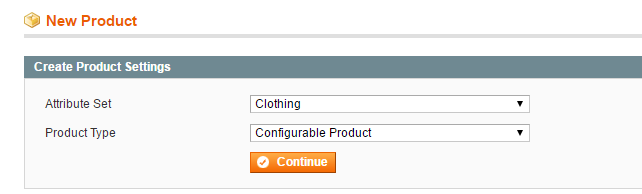
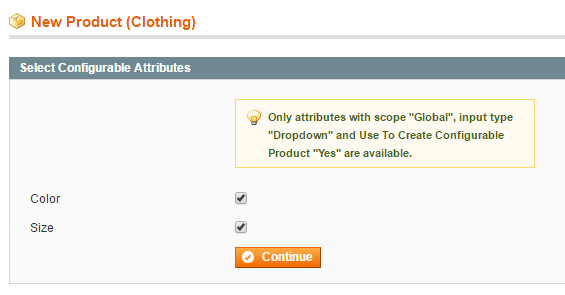
Fill out product info like a simple product, but note:
- Price acts as a default. Associated products can override it.
- Stock is managed per associated product, not globally.
Step 7: Add Associated Products
From the Associated Products tab, add variations using one of these methods:
- Quick Simple Product Creation – Fill in fields and click Quick Create.
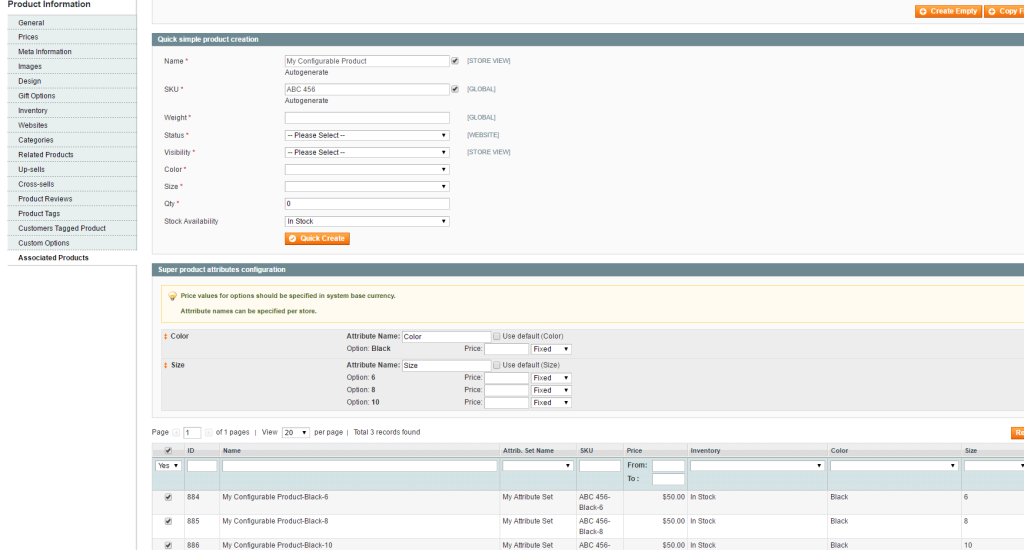
- Create Empty – Opens a blank form to define a simple product.
- Copy from Configurable – Pre-fills info from parent product.
- Create separately under Catalog → Manage Products and set visibility to Not Visible Individually.
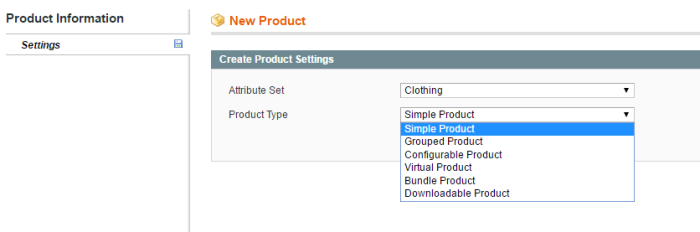
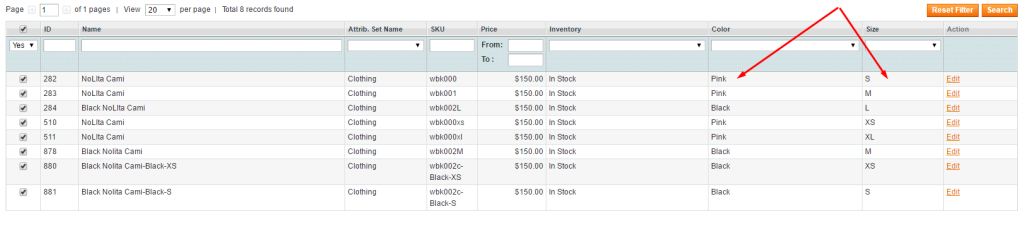
Assign all simple products with combinations of attributes (e.g., Red-S, Red-M, Blue-S, Blue-M).
Step 8: Save and Test
Click Save, then check the frontend. Your configurable product should now display dropdowns for customer selection.
Final Notes
- Configurable products improve UX by letting customers choose variations directly on the product page.
- Visual appearance depends on your theme and installed extensions.
- Always make sure every associated simple product has the required attributes filled.
Updated on: 17/09/2025
Thank you!