
How to install an extension in Magento 2 - WeltPixel Guides

What Magento is (quick refresher)
Magento is an open‑source ecommerce platform written in PHP. It uses frameworks like Laminas and Symfony and is licensed under OSL v3.0.
Magento 2 editions at a glance
- Magento Open Source – free and fully customizable.
- Magento Commerce – enterprise features, available on‑prem or as a managed cloud PaaS.
(Older editions such as Magento Professional and Magento Go are discontinued.)
Why Magento 2 (vs. Magento 1)
- Better performance (PHP 7+, MySQL improvements, FPC + Varnish).
- jQuery replaces Prototype.js.
- Stronger security (SHA‑256 password hashing).
- Smoother checkout (Instant Purchase, guest‑to‑account flow).
- Ajax Add to Cart, improved admin UX, richer reports.
- Built‑in payment integrations (PayPal, Braintree, Authorize.net, etc.).
- Native B2B features (2.2+).
- Elasticsearch support.
- Easier product authoring (including videos).
Ways to install a Magento 2 extension
Choose one of the methods below. For any method, first verify compatibility and install on a staging site before production.
Method 1 — Install via Composer (CLI)
1) Ensure your Magento Marketplace authentication keys are configured on the instance.
2) From your Magento root, run:
composer require weltpixel/module-advance-category-sorting
php bin/magento setup:upgrade
php bin/magento setup:di:compile
php bin/magento setup:static-content:deploy -f
That’s it — the module is installed.
Method 2 — WeltPixel 1‑Minute GUI installer
1) Confirm compatibility on a staging environment first.
2) Copy files into your Magento 2 instance (create folders if missing):
app/code/WeltPixel/Backend
app/code/WeltPixel/AdvanceCategorySorting

3) Copy the weltpixel-extension-installation folder to your Magento web root (on some setups this is under /pub).
Open in your browser:
https://www.yourmagentostore.com/weltpixel-extension-installation/

4) Follow the on‑screen steps to complete the install.
Video: 1‑Minute Module Installation via browser GUI — https://vimeo.com/339572179

Done — the extension is now installed.
Method 3 — Manual install via SSH
1) Copy files into your Magento 2 instance:
app/code/WeltPixel/Backend
app/code/WeltPixel/AdvanceCategorySorting
2) Enable and register the modules:
php bin/magento module:enable WeltPixel_Backend --clear-static-content
php bin/magento module:enable WeltPixel_AdvanceCategorySorting --clear-static-content
php bin/magento setup:upgrade
3) Flush Magento caches (and any server‑side caches) after enabling.
Method 4 — Web Setup Wizard (deprecated)
The Web Setup Wizard is deprecated. If it’s still present on your instance, you can use it, but prefer Composer/CLI.
1) In Magento Marketplace → My Profile → Purchase History, click Install for the purchased extension.
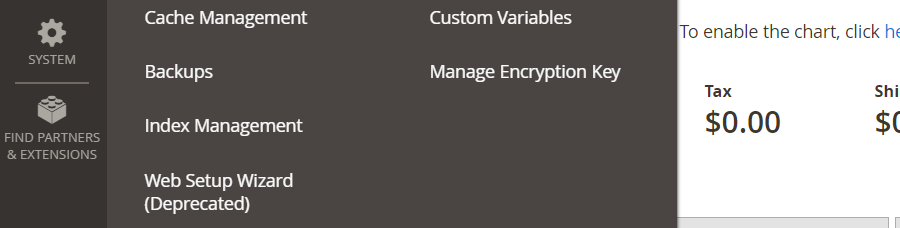
2) Ensure you have Access Keys (Public/Private) under My Profile → Access Keys.
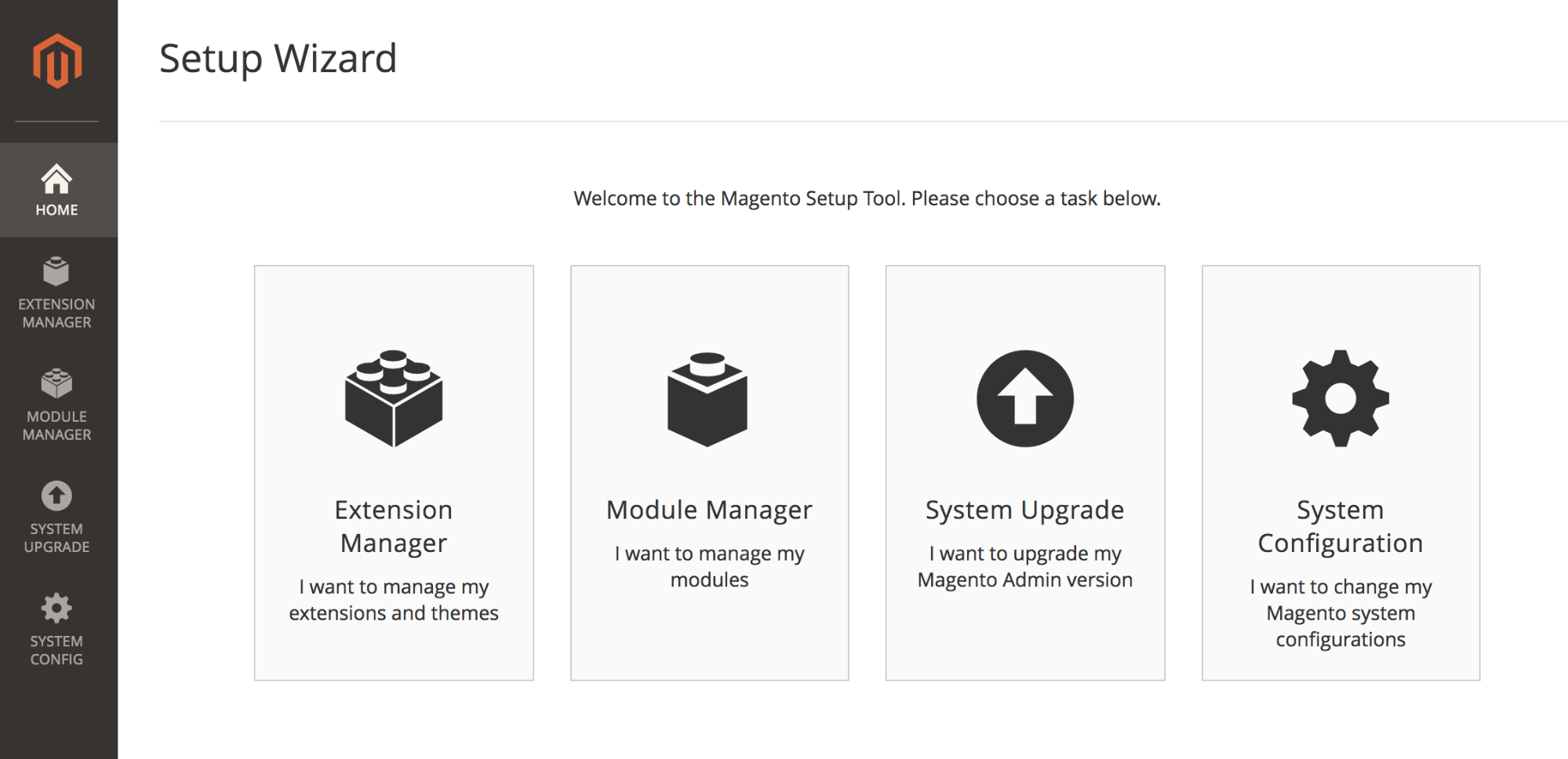
3) In your Magento Admin, go to System → Web Setup Wizard (Deprecated) → Extension Manager, sign in with your keys, and Refresh to sync purchases.
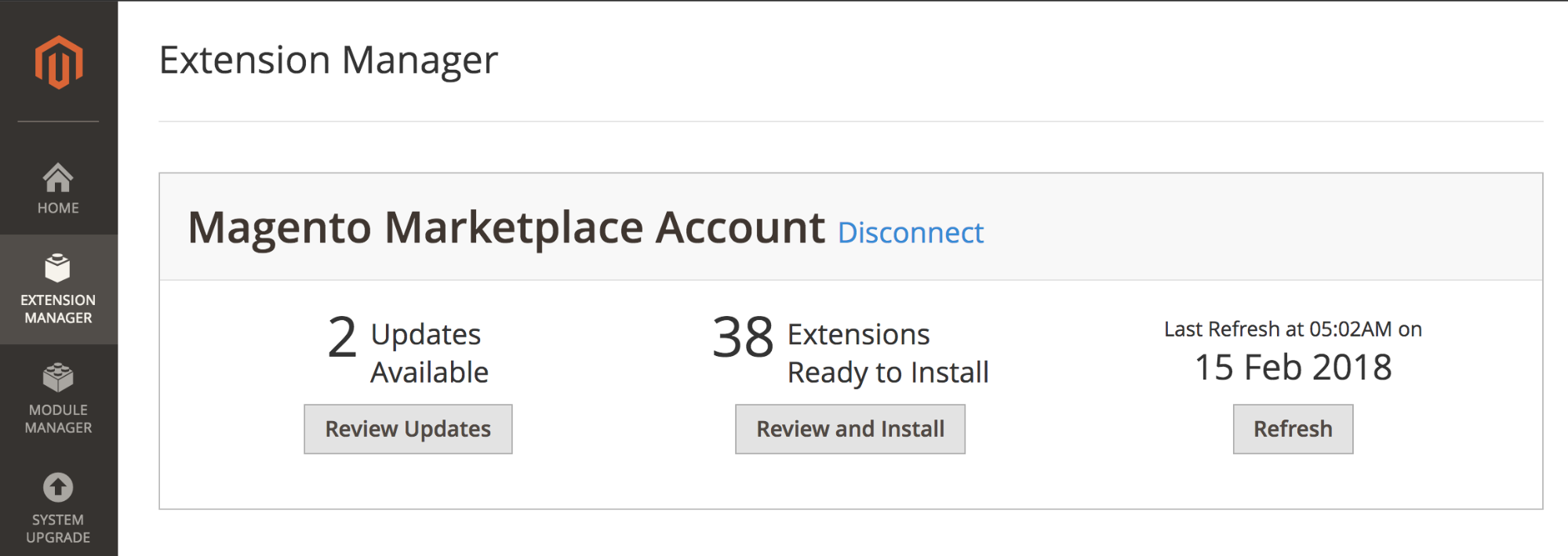
4) Select the module → Install → pass Readiness Check → take a backup if prompted → proceed through Steps 1–3 until you reach Success.
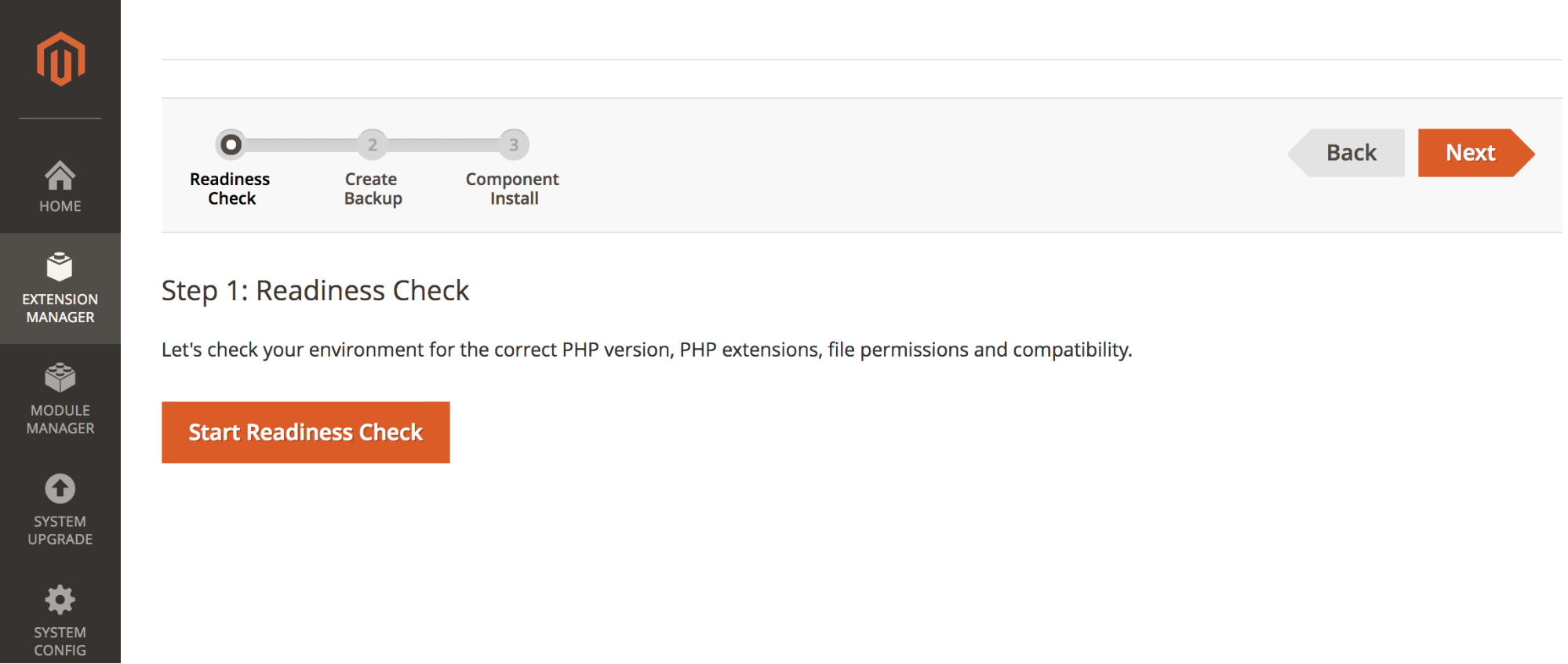
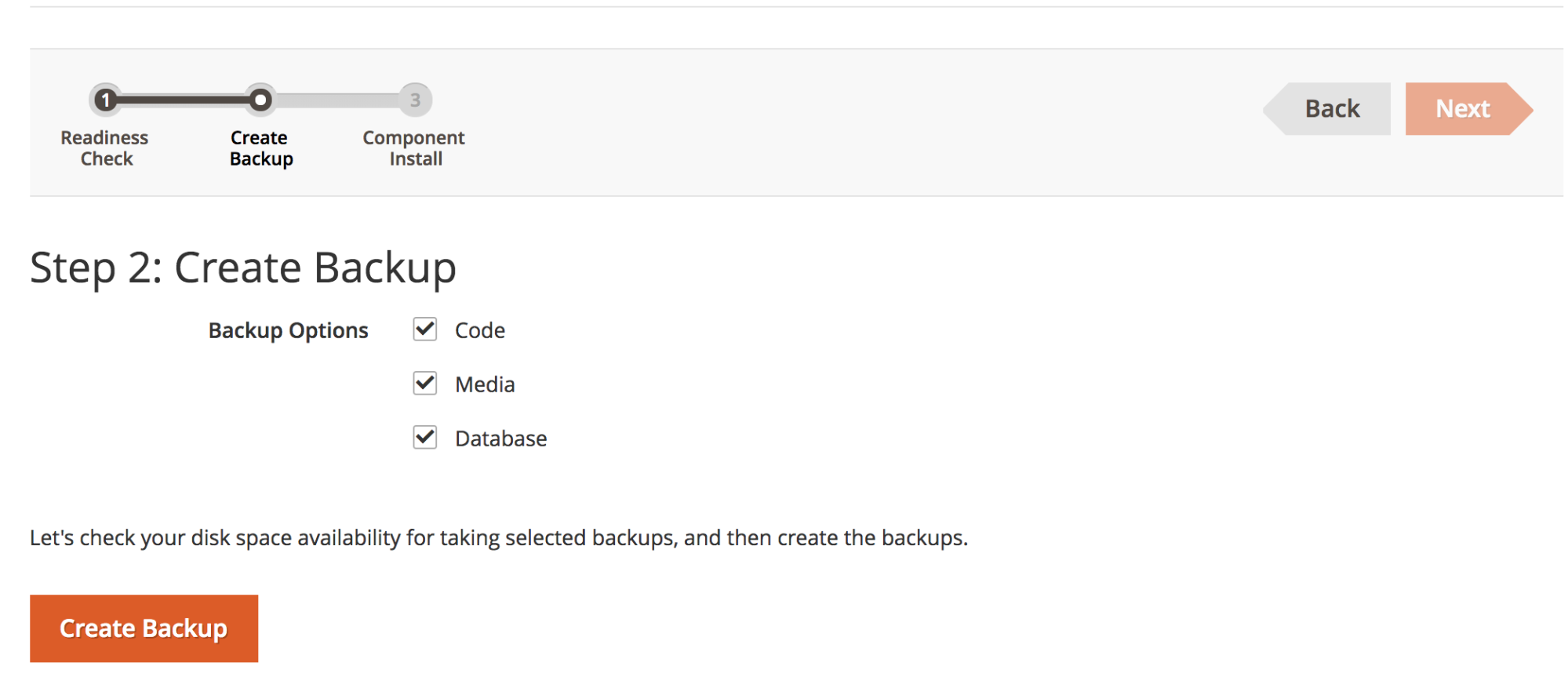
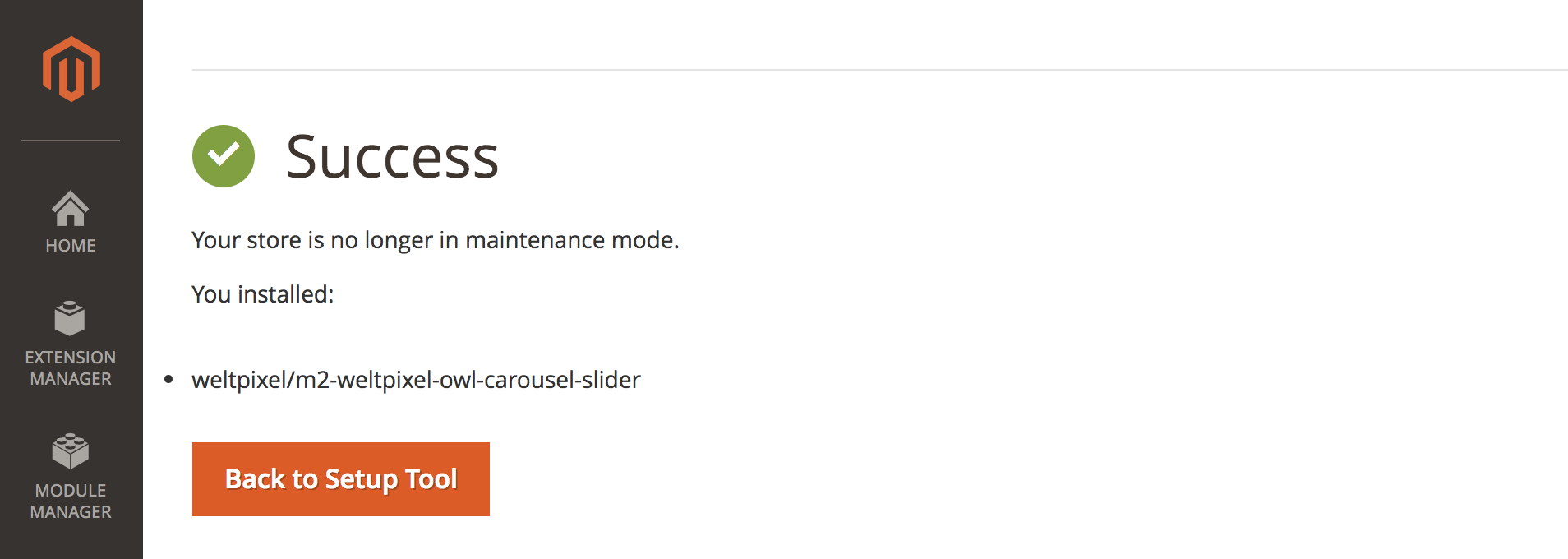
If the Readiness Check fails, verify cron is running and resolve any reported PHP extension or permissions issues.
Post‑install notes
- Always clear Magento and application caches after installation.
- For production, deploy static content and recompile DI if you installed on a running site.
- Keep extensions up to date to maintain compatibility and security.
Summary
Magento 2 is faster, more secure, and more scalable than Magento 1. Use Composer/CLI as your primary installation method, or the WeltPixel GUI for a quick, guided setup. Avoid the deprecated Web Setup Wizard unless necessary.
Updated on: 18/09/2025
Thank you!