
How to set up reCAPTCHA on Magento 2
Google reCAPTCHA is a security service that prevents fraud and abuse on your website.
Starting with Magento 2.3.x, Google reCAPTCHA is included by default in the Magento Core, meaning that it only needs to be configured in order to be ready for use. To enable and configure it, follow the steps below:
In order to enable the reCAPTCHA from Google, you need a pair of API keys.
Important: For reCAPTCHA to be enabled, valid Google API Website Key and Google API Secret Key fields are required.
Before you start the setup and generate the API keys, you need to know what type of reCAPTCHA you want to use. There are 3 options available:
- reCAPTCHA v2 ("I am not a robot")
- reCAPTCHA v2 Invisible
- reCAPTCHA v3 Invisible
To set it up, first, go to Google reCAPTCHA and generate the reCAPTCHA keys.
After generating the API keys for the reCAPTCHA type you choose for your site, follow these steps to set it up in Magento:
Set reCAPTCHA for Magento Admin Store
Go to Admin -> Stores -> Settings -> Configuration -> Scope: Default Config -> Security -> Google reCAPTCHA Admin Panel

1. Set up reCAPTCHA v2 ("I am not a robot")
- Google API Website Key – Add the key created for this reCAPTCHA type.
- Google API Secret Key – Add the secret key associated with your Google reCAPTCHA account.
- Size – Normal or Compact.
- Theme – Light or Dark.
- Language Code – Optional. Forces the widget to render in a specific language. Auto-detects if unspecified. See supported language codes.

2. Set up reCAPTCHA v2 Invisible
- Google API Website Key – Add the key.
- Google API Secret Key – Add the secret key.
- Invisible Badge Position – Inline, Bottom Right, or Bottom Left.
- Theme – Light or Dark.
- Language Code – Optional.

3. Set up reCAPTCHA v3 Invisible
- Google API Website Key – Add the key.
- Google API Secret Key – Add the secret key.
- Minimum Score Threshold – Identifies when a user could be a bot (0.0 = likely bot, 1.0 = normal user, default = 0.5).
- Invisible Badge Position – Inline, Bottom Right, or Bottom Left.
- Theme – Light or Dark.
- Language Code – Optional.

4. Set up reCAPTCHA Failure Messages
- Validation Failure Message – Custom or Default message.
- Technical Failure Message – Custom or Default message.

5. Admin Panel
Choose where reCAPTCHA should appear:
- Login Page
- Forgot Password page

Set reCAPTCHA for the Storefront
Go to Admin -> Stores -> Settings -> Configuration -> Scope: Default Config -> Security -> Google reCAPTCHA Storefront

Options available include:
- Customer Login
- Forgot Password
- Create New Customer Account
- Edit Customer Account
- Contact Us
- Product Review
- Newsletter Subscription
- Send To Friend
- PayPal PayflowPro payment form
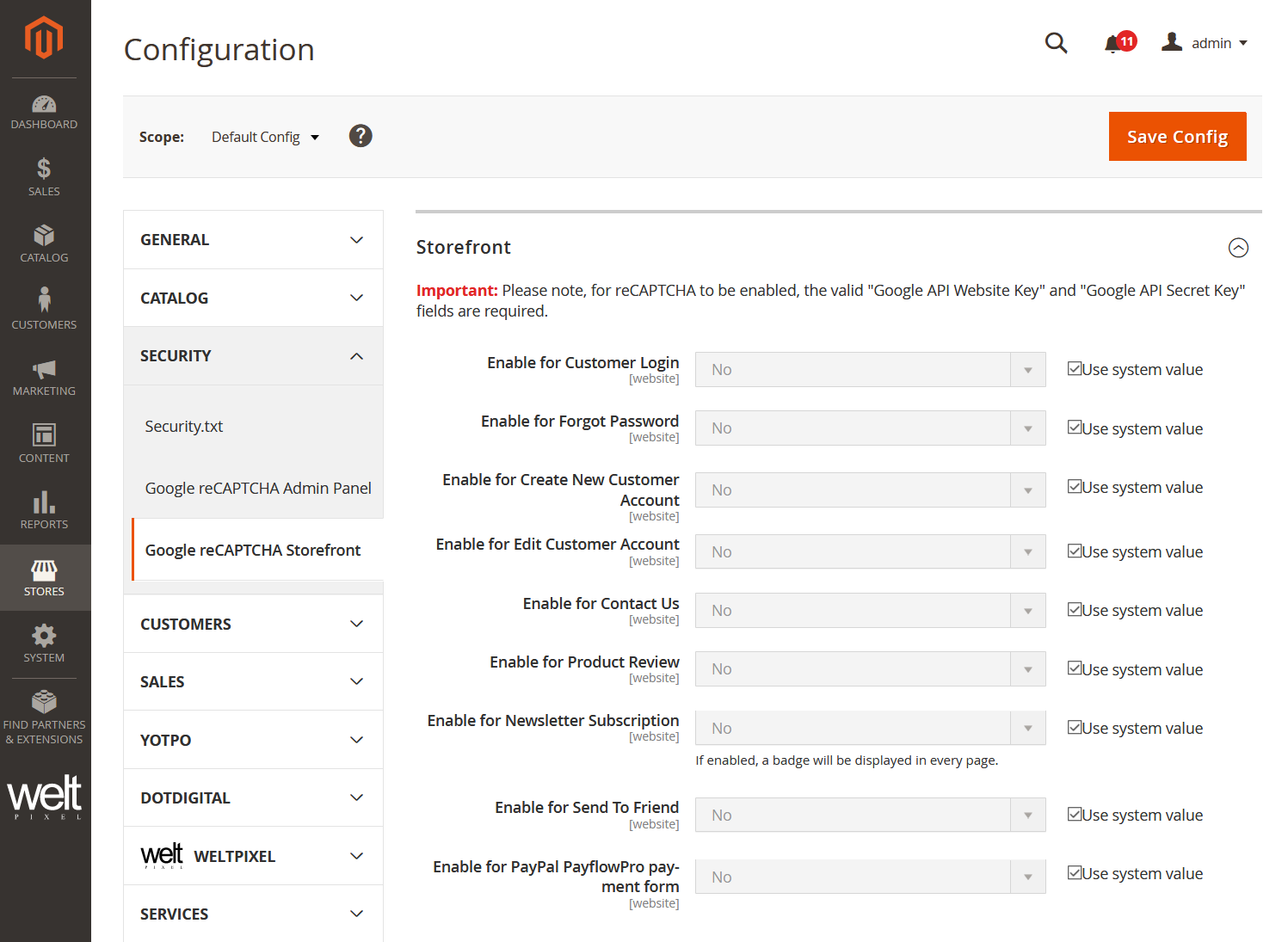
Click Save Config after making changes.
The Google reCAPTCHA should now be enabled and configured on your store to help keep bots away.
If you want to set up CAPTCHA on Magento 2, follow this guide.
Updated on: 18/09/2025
Thank you!